Guide
How to Get More Colors on Google Calendar
If you want to know how to get more colors on Google Calendar — or how to add colors to Google Calendar for the first time — the right approach depends on your device. Google Calendar's default palette can feel restrictive once you are managing work meetings, personal plans, workouts, deadlines, family events, and projects all in one place.
Short answer: You can get more colors in Google Calendar by using custom calendar colors on desktop, creating color labels, organizing events into separate calendars, or using a browser extension like TintCalendar for more desktop color options.
The approach that works best depends on your device. Desktop gives you the most control. iPhone and Android have more limited native options. This guide covers all three platforms clearly and honestly.
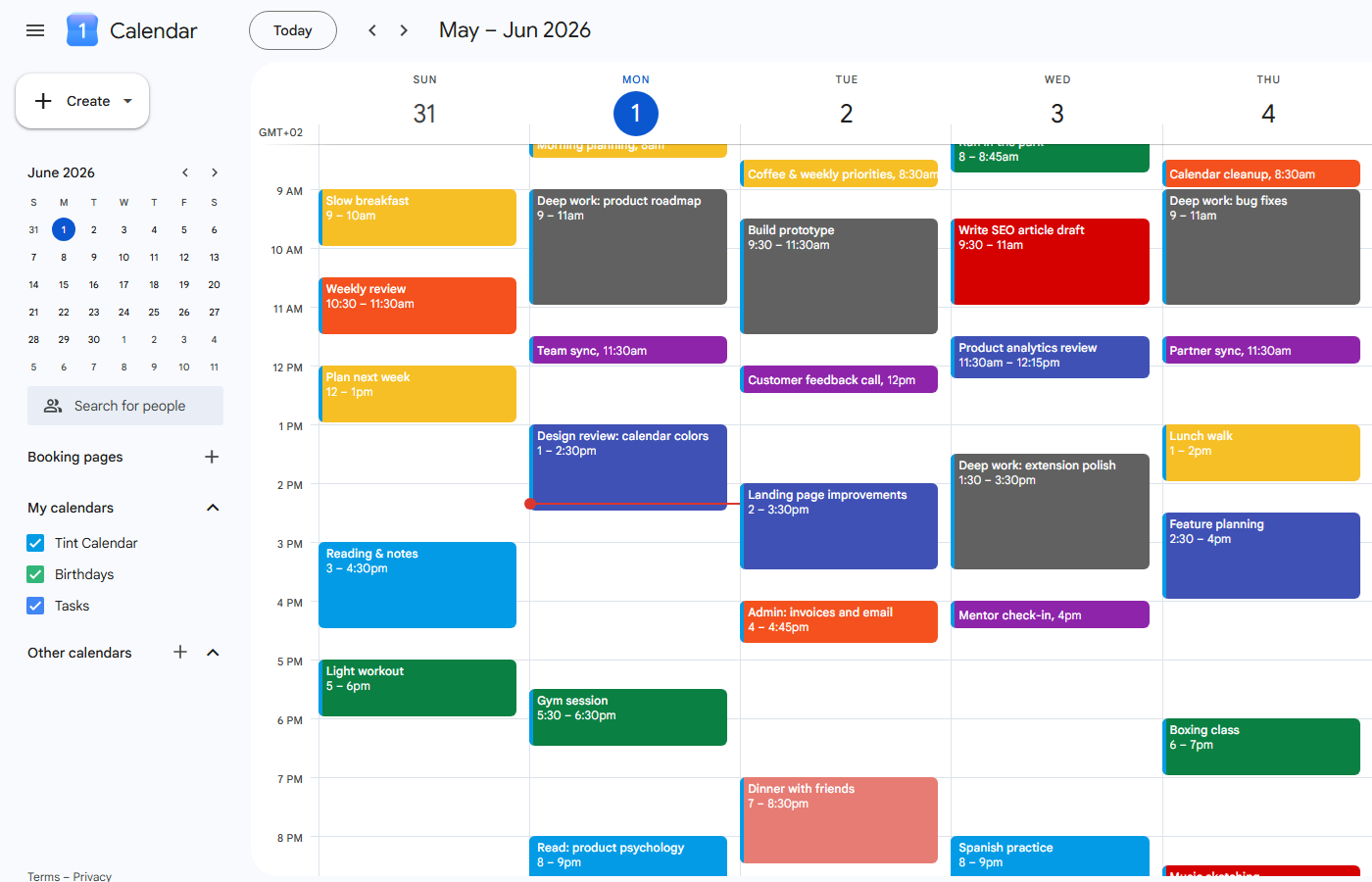
Can you get more colors on Google Calendar?
Yes, but with limits. Google Calendar includes a set of built-in colors for calendars and individual events. On desktop, you also have access to some custom color options. Mobile apps let you assign existing colors and labels, but advanced color creation is generally handled on a computer first.
For users who want more flexibility on desktop, a Chrome extension like TintCalendar can extend what is available inside Google Calendar.
| Method | Works on Desktop? | Works on iPhone/Android? | Best for |
|---|---|---|---|
| Built-in calendar colors | Yes | Yes (assign existing) | Organizing separate calendars |
| Individual event colors | Yes | Yes (assign existing) | Highlighting specific events |
| Color labels | Yes | Yes (if created on desktop first) | Consistent event tagging |
| Separate calendars | Yes | Yes | Broad category color coding |
| TintCalendar extension | Yes (Chrome/desktop) | No | More color options and text color on desktop |
How to get more colors on Google Calendar on desktop
Desktop Google Calendar gives you the most control over how colors work in Google Calendar. The most reliable method is to assign a distinct color to each calendar you manage.
Change the color of a whole calendar
- Open Google Calendar at calendar.google.com on your computer.
- Find My calendars in the left sidebar.
- Hover over the calendar name you want to change.
- Click the three-dot menu that appears.
- Select a color from the available palette, or choose a custom color if the option is available in your account.
- Repeat for each calendar you manage.
This sets the default color for every event in that calendar. If you have separate calendars for Work, Personal, and Health, each can have its own distinct color — making your schedule readable at a glance.
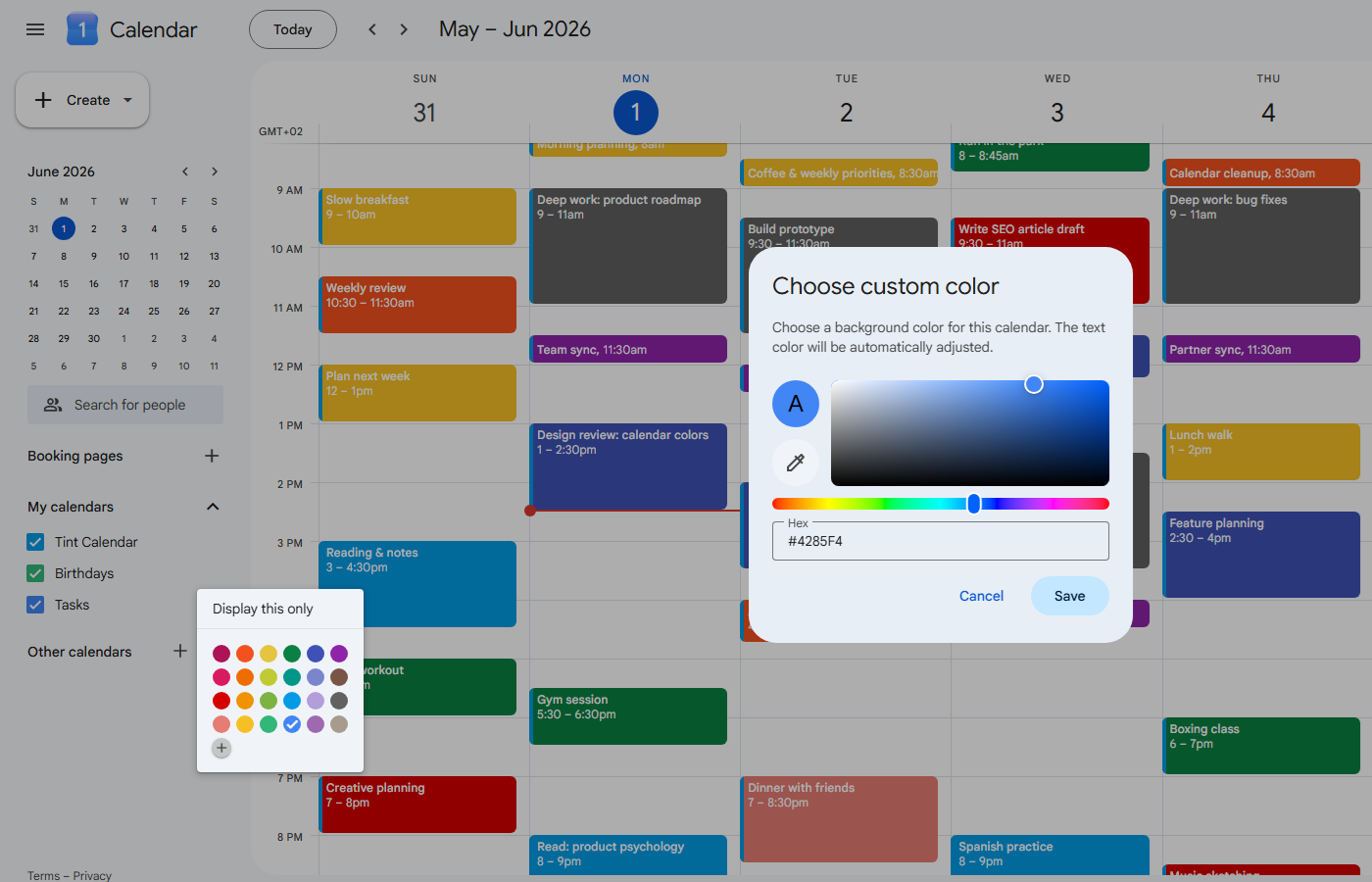
How to change the color of a single Google Calendar event
If you want to change the color of one specific event without affecting the whole calendar, Google Calendar lets you do that too. Use this when a deadline, interview, or travel block needs to stand out.
- Open Google Calendar on your computer.
- Click on an existing event, or create a new one.
- Click the edit (pencil) icon to open the full event editor.
- Look for the color circle or calendar color indicator near the event title.
- Click it and choose a different color or color label from the list.
- Save the event.
Individual event colors are primarily for your own view. Whether other people on shared calendars see your event colors depends on your calendar's sharing settings and permissions.
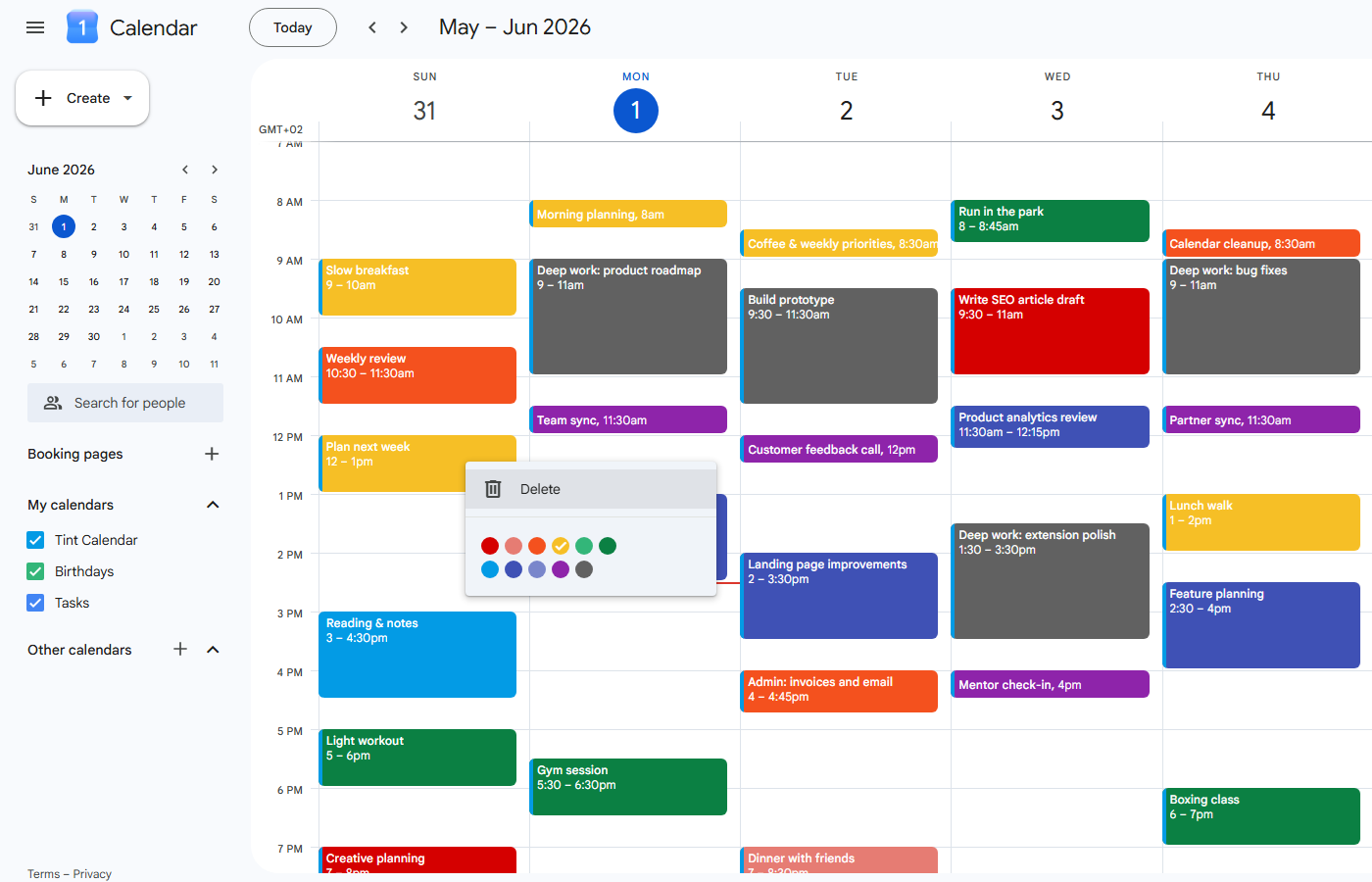
How to add custom colors to Google Calendar
Google Calendar's native interface provides a set of built-in colors and, depending on your account and version, may offer a custom color picker for calendar colors. This gives a reasonable range, but it is not unlimited.
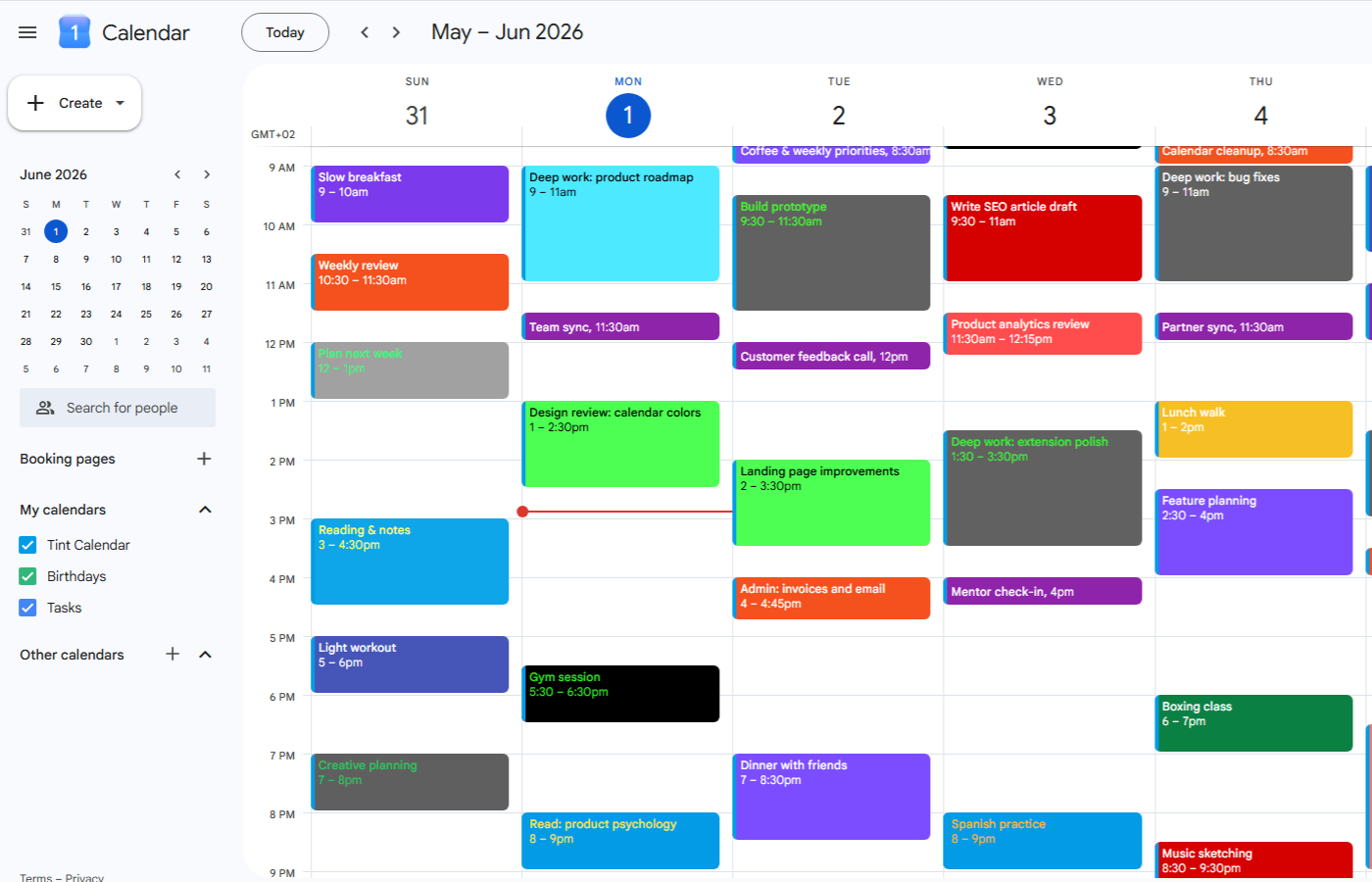
If you want more custom colors for Google Calendar on desktop, the TintCalendar Chrome extension is designed to help with exactly this.
What TintCalendar does
- Adds more event color options inside Google Calendar on desktop.
- Lets you customize event text color, which native Google Calendar does not offer per-event.
- Works within your existing Google Calendar interface in Chrome.
- Does not require a separate app or account.
Try TintCalendar if you want more custom colors for Google Calendar on desktop.
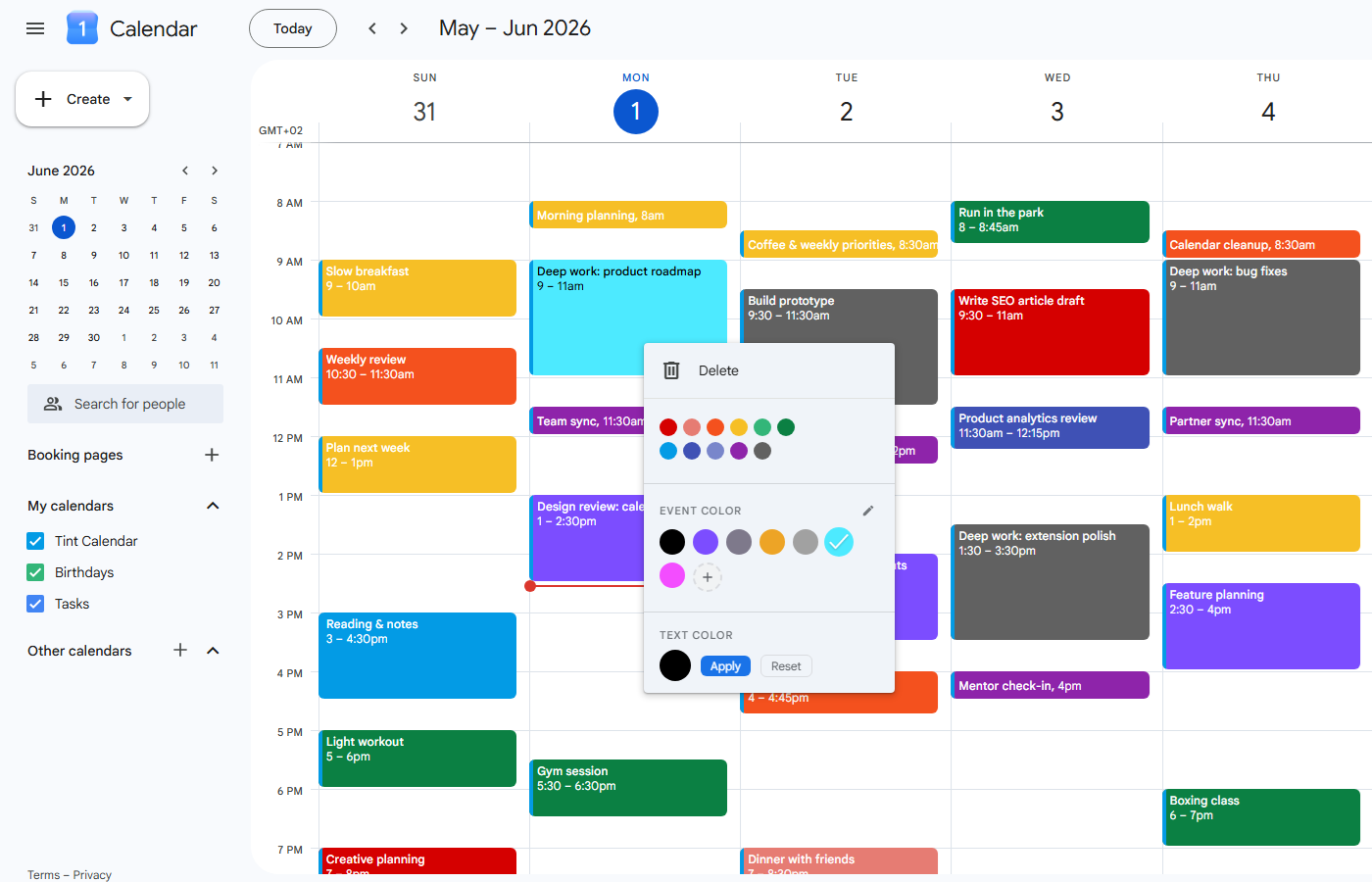
Can you change Google Calendar text color?
This is a common question and the answer requires some care. Google Calendar on desktop has appearance settings that include color sets such as Modern (white text on colored event backgrounds) and Classic (black text). You can switch between these in Google Calendar Settings under Density and color.
However, this is a global setting — it is not a way to choose a custom text color for each individual event. Native Google Calendar does not offer per-event text color customization.
If readable event text matters to you — for example when using darker or custom background colors — see our guide on changing colors on Google Calendar for more context. TintCalendar provides event text color customization on desktop Google Calendar, which can make events more readable depending on your color choices.
How to get more colors on Google Calendar on iPhone
The Google Calendar iPhone app is more limited than the desktop version when it comes to color customization.
What you can do on iPhone
- View your calendar and its existing colors.
- Assign existing color labels to events when they are already available.
- Switch between calendars that already have colors set up.
What requires a computer first
According to Google, color labels must be created on a computer before they can be assigned on mobile. If you want to set up a robust color-coding system, the practical advice is: set it up on desktop first, then use the iPhone app to assign those colors when available.
TintCalendar is a desktop Chrome extension. It does not work in the native Google Calendar iPhone app.
How to get more colors on Google Calendar on Android
Android's Google Calendar app works similarly to iPhone in this regard.
What you can do on Android
- Assign existing colors or color labels to events and calendars when the option is available in the app.
- View your color-coded calendar as set up on desktop.
What is better handled on desktop
Advanced color setup — including creating new color labels or setting custom calendar colors — is better done at calendar.google.com on a computer. Google notes that color labels must first be created on a computer before being available to assign on Android.
If you searched for cambiar color Google Calendar Android, the practical answer is the same: use desktop for the initial setup, then assign available colors or labels on Android when the app supports it.
TintCalendar is for desktop Chrome. It does not work in the native Android Google Calendar app.
Best ways to make Google Calendar more colorful
Color-coding works best when it is consistent and intentional. A few practical tips:
- Create separate calendars for major categories — Work, Personal, Health, Family, Projects. Each gets its own color.
- Use consistent colors for event types — if blue always means a meeting, you will recognize it at a glance.
- Reserve high-contrast or bright colors for high-priority events — red for deadlines, for example.
- Do not make every event bright — a calendar where everything is vivid becomes just as hard to read as one with no color at all.
- Consider text readability — lighter background colors may require darker text to stay readable.
- Keep your palette simple — four to six colors tends to work better than twelve.
Google Calendar color ideas
If you are not sure where to start, here is a simple palette many people find useful:
| Calendar / Category | Suggested Color |
|---|---|
| Work meetings | Blue |
| Personal | Green |
| Health / Workouts | Orange |
| Family | Purple |
| Deadlines | Red |
| Deep work / Focus time | Dark blue or gray |
| Learning / Courses | Teal |
| Admin / Tasks | Yellow or light brown |
These are starting points. Adjust them to what feels readable and intuitive for your own schedule.
FAQ
Can I get more colors on Google Calendar?
Yes. Desktop Google Calendar offers built-in colors and some custom color options. You can also use a Chrome extension like TintCalendar for more desktop color choices. Mobile apps are more limited and allow assigning existing colors when available.
Can I add custom colors to Google Calendar?
On desktop, Google Calendar may offer a custom color picker for calendar colors depending on your account. For more extensive custom color options on desktop Google Calendar, TintCalendar is a Chrome extension that adds more color flexibility.
Can I get more colors on Google Calendar on iPhone?
The iPhone app allows you to assign existing color labels and calendar colors when available. Advanced color creation is handled on desktop first. Google states that color labels must be created on a computer before they can be assigned on mobile.
Can I get more colors on Google Calendar on Android?
Similar to iPhone, Android can assign existing colors and labels when available. Set up your color system on desktop first. Google states that color labels must be created on a computer before being available on Android.
Can I change Google Calendar event text color?
Native Google Calendar does not offer per-event text color customization. It has global appearance settings — Modern uses white text and Classic uses black text. TintCalendar, a Chrome extension, adds event text color customization on desktop Google Calendar.
Can other people see my event colors?
Individual event colors are primarily visible to you. Whether shared calendar users see your event colors depends on the calendar's sharing settings and permissions.
What is the best way to color-code Google Calendar?
Use separate calendars for major life categories such as Work, Personal, and Health. Assign a consistent color to each calendar, reserve high-contrast colors for important events, and keep your palette to four to six colors for readability.
Does TintCalendar work on mobile?
No. TintCalendar is a Chrome extension for desktop Google Calendar. It does not work in the native Google Calendar apps on iPhone or Android.
Is TintCalendar an official Google product?
No. TintCalendar is an independent third-party Chrome extension. It is not affiliated with or endorsed by Google.
Conclusion
Google Calendar has a solid set of built-in color options, and desktop gives you the most control over how to get more colors on Google Calendar. You can change calendar colors from the sidebar, assign individual event colors, and use color labels to organize your schedule visually.
Mobile apps on iPhone and Android allow you to use existing colors and labels, but advanced setup is better handled on a computer first.
If you want to go further — more color choices, custom color combinations, or event text color control on desktop Google Calendar — the TintCalendar Chrome extension is worth trying. Start with a simple color system, keep it consistent, and your calendar will be easier to read at a glance.