Guide
How to Add More Colors to Google Calendar (Real Solution That Works)
If you have ever tried to organize your schedule in Google Calendar, you have probably hit the same problem: there are not enough colors. And there is no simple built-in way to add more.
In this guide, you will learn:
- what Google Calendar actually allows,
- why most suggested fixes do not work,
- and the practical way to get more colors.

❌Can You Add Custom Colors in Google Calendar?
Short answer: not properly.
Google Calendar does not provide a real built-in feature to:
- freely add unlimited colors,
- save custom palettes,
- reuse colors quickly across events.
You can assign colors, but you are still limited by the default system.
🚧Common "Solutions" (That Do Not Really Work)
1Creating multiple calendars
Some guides suggest assigning different calendar colors to categories.
Problem: messy, hard to manage, and not scalable.
2Reusing existing colors manually
Problem: no consistency, no structure, and easy to lose track.
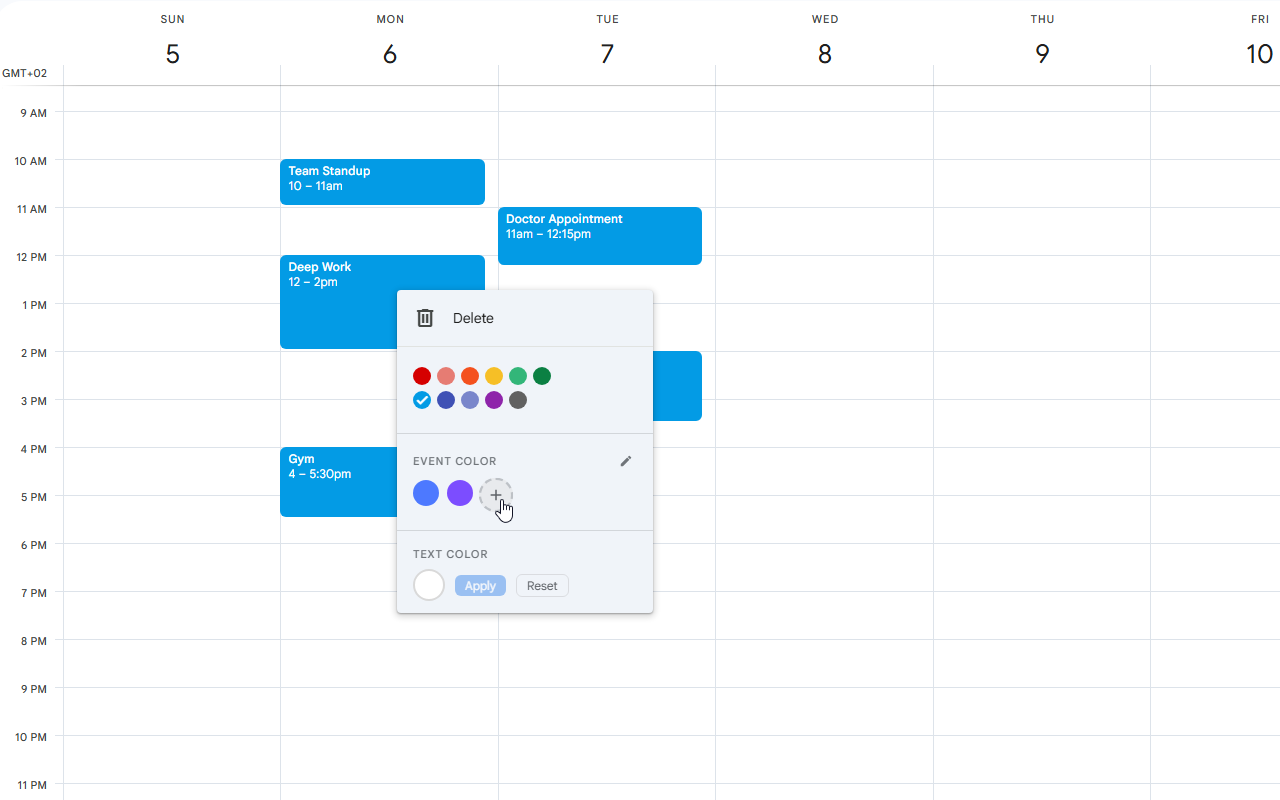
✅The Real Way to Add More Colors
If you want more color options, faster selection, and a clean workflow, you need to extend Google Calendar.
The easiest way is using a browser extension like Tint Calendar.
🎨What Tint Calendar Does
Tint Calendar enhances Google Calendar by:
- adding more color options directly in the UI,
- making color selection faster,
- helping you keep a consistent visual system.
No hacks and no complicated setup.
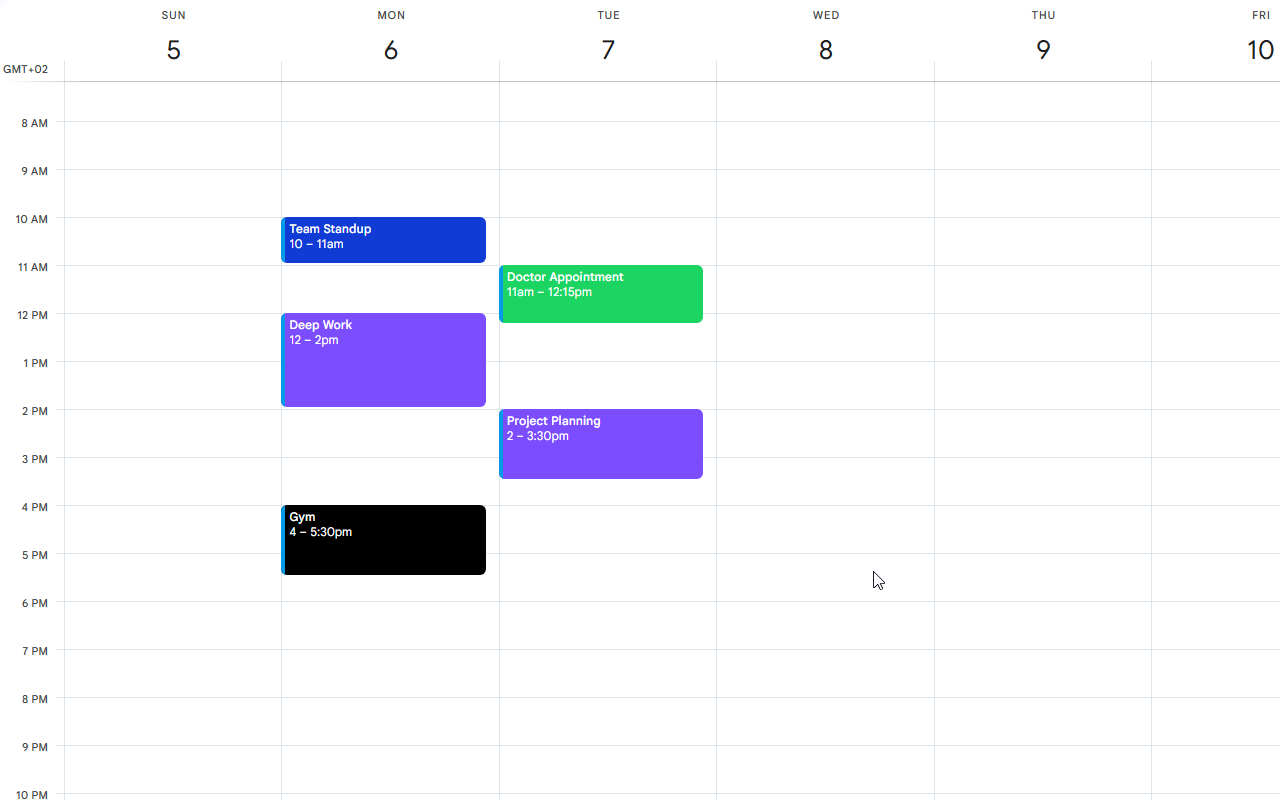
⚡How to Use It
- Install the extension.
- Open Google Calendar.
- Click any event and choose from extended colors.
That is it.
🧠Why Colors Matter More Than You Think
Using more colors is not just about aesthetics. It helps you:
- instantly distinguish event types,
- reduce cognitive load,
- plan your day faster.
Example system:
Your brain processes color faster than text. This is a practical productivity upgrade.
| Feature | Google Calendar | With Tint Calendar |
|---|---|---|
| Number of colors | Limited | Extended |
| Ease of use | Basic | Fast and intuitive |
| Reusability | Poor | Better |
| Scalability | Low | High |
🎯Who Needs This Most?
This is especially useful if you:
- manage multiple projects,
- track habits or workouts,
- want better visual organization,
- use Google Calendar daily.
❓FAQ
?Can I add unlimited colors without extensions?
No, not in a practical way.
?Will this affect my existing events?
No, it only enhances how you choose colors.
?Is it safe?
Yes, as long as you install trusted extensions and review permissions.
🚀Final Thoughts
Google Calendar is great, but its color system is limited.
If you only track a few events, default colors may be enough. If you rely on your calendar daily, you will feel the limits quickly.
Want to try it now? Install Tint Calendar